Hiya.
What’s a game without input?
Unity has an awesome Input System which can listen for user input within a certain object. So I can set up a MenuNavigation map which I enable when I need a menu and disable when I don’t. This is cool because as long as you’re careful with the event subscriptions, you can stack control schemes or switch between them. This is very handy as Five Arcade has five control schemes (Five is a number which keeps popping up in this project):
- Ve: Twin Stick shooter type controls, where the player uses each analogue stick to aim one of each gun on Ve’s arms. And shoot.
- Fi: A simpler Twin stick system where the left analogue stick moves Fi left and right, an Interact Button and a Fire Button for an Umbrella, because obviously.
- Mini Game: Basic Up Down Left Right Action controls.
- Menu Navigation: Up Down Action
- Master: Pause Game, Debug stuff, etc
So each of these systems has an action map to which I add a series of Actions. An Action is basically something I want to happen based on user input, FireGun for example. Actions can have different return values, an Analogue stick will return a Vector2 point within a Unit Circle, while a Button press will be more binary. To each Action you can add a series of Bindings, which is the actual input from the player; Space Bar, Left Analogue Stick, X Button, etc.
You create an instance of these action maps, have your code listen for actions within each map, trigger whatever code you need with the values returned from the input. I’m a bit of a sucker for the ole design patterns so I like to break this process down further. When things go wrong in my code (which NEVER happens!) I need to be led to the problem with as little brain power as possible.
ERROR: Ve isn’t moving
Breadcrumb: VeMoveCommand -> VeMovement.Move()
I have two possible places a problem might be. I check if the VeMoveCommand is firing with the correct input value. If it is, the problem is in VeMovement. And honestly, I just like how my Input System looks. So let’s have a look at how I handle all this in Five Arcade. We’ll break down the Menu Input, which just moves up and down buttons on a menu and calls OnClick events.
Menu Commands
Here is an Enum containing every action the map has
public enum MenuInputCommandSlot
{
    NAVIGATE = 0,
    STOP_NAVIGATE,
    ACTION,
    STOP_ACTION,
    COUNT,
}Side Note: I think all Enums default to counting from 0 upwards, but explicitly setting the first value to 0 just makes me feel more comfortable. Pay attention to the “COUNT” value, if each element has a number 1 greater than the previous element, then adding “COUNT” at the end gives a lovely way to access the amount of values in the Enum.
I used to use this awful method inside of the static enum class:
Enum.GetNames(typeof(MenuInputCommandSlot)).Length;
Still gives me nightmares!
Command Invoker
public class MenuCommandInvoker
{
    Command[] commands;

    public MenuCommandInvoker(MainMenuPlayerInput input)
    {
        commands = new Command[(int)MenuInputCommandSlot.COUNT];

        commands[(int)MenuInputCommandSlot.NAVIGATE] = new MainMenuNavigateCommand(input);
        commands[(int)MenuInputCommandSlot.STOP_NAVIGATE] = new MainMenuStopNavigateCommand(input);
        commands[(int)MenuInputCommandSlot.ACTION] = new MainMenuActionCommand(input);
        commands[(int)MenuInputCommandSlot.STOP_ACTION] = new MainMenuStopActionCommand(input);
    }
    public void CommandReceivedAtSlot(MenuInputCommandSlot slot)
    {
        commands[(int)slot].Execute();
    }
}Here is the Command Pattern. It’s a surprisingly useful little pattern that I use so much. It’s permeated my brain so much that sometimes when I say stuff to people, I first envision my speech being wrapped in a bubble and passed to a command which pops it, spilling out the words at the person I’m talking to…who is often completely imaginary. Where am I? Oh yes, sorry. Code.
    public abstract class Command
    {
        public abstract void Execute();
    }
A command is really simple, it just executes a piece of code which does a thing. It was explained to me with a controller analogy, think of a command as the in-between of the button and the action. Press X on a controller, the command notices and informs a character that it would be great if they jumped now, please.
So I have an array of Commands, stored and indexed by an enum. Each command has access to data stored in MenuPlayerInput. MenuPlayerInput holds the classes necessary to interact with the menu.
Here is the Action Command for the Menu
    public class MenuActionCommand : Command
    {
        private MenuNavigationEvents events;
        public MainMenuActionCommand(MenuPlayerInput input)
        {
            events = input.NavigationEvents;
        }
        public override void Execute()
        {
            events.NotifyActionPressedEventSubscribers();
        }
}When this command is executed by
    public void CommandReceivedAtSlot(MenuInputCommandSlot slot)
    {
        commands[(int)slot].Execute();
}An event is fired which is picked up by the MenuNavigation class which has an OnClick method which is called on whatever button is highlighted.
Don’t worry at all about the event system here, it’s not part of this pattern. I have to use events because my User Interface is in a completely different Assembly Definition and Namespace as this file so I can’t call any of the methods directly. The following code is called MainMenuInputEvents, don’t confuse this for the event system in the command. (I apologise if that’s a little confusing, the menu system seemed like the best approach to explain this, but it does have this weird quirk).
Input Events
Here is where we hook up the events from Unity’s InputSystem to our CommandInvoker.
public class MainMenuInputEvents
{
    public MenuCommandInvoker invoker { get; private set; }
    public InputAction.CallbackContext Context { get; protected set; }

    public MainMenuInputEvents(MenuPlayerInput input)
    {
        invoker = new MainMenuCommandInvoker(input);
    }
    public void AddEventSubscribers(PlayerInputActions.MainMenuActions inputActions)
    {
        inputActions.Navigate.performed += Move;
        inputActions.Navigate.canceled += StopMove;
        inputActions.Action.performed += Action;
        inputActions.Action.canceled += StopAction;
    }
    public void RemoveEventSubscribers(PlayerInputActions.MainMenuActions inputActions)
    {
        inputActions.Navigate.performed -= Move;
        inputActions.Navigate.canceled -= StopMove;
        inputActions.Action.performed -= Action;
        inputActions.Action.canceled -= StopAction;
    }
    private void Move(InputAction.CallbackContext context)
    {
        Context = context;
        invoker.CommandReceivedAtSlot(MainMenuInputCommandSlot.NAVIGATE);
    }
    private void StopMove(InputAction.CallbackContext context)
    {
        Context = context;
        invoker.CommandReceivedAtSlot(MainMenuInputCommandSlot.STOP_NAVIGATE);
    }
    private void Action(InputAction.CallbackContext context)
    {
        Context = context;
        invoker.CommandReceivedAtSlot(MainMenuInputCommandSlot.ACTION);
    }
    private void StopAction(InputAction.CallbackContext context)
    {
        Context = context;
        invoker.CommandReceivedAtSlot(MainMenuInputCommandSlot.STOP_ACTION);
    }
}the constant setting of the Context bothers me a bit here, its a severe breach in code duplication but I’ll deal with that later. The main thing in this class is the ActionMap event subscribing and unsubscribing. In Unity, it’s important to put these two classes in OnEnable and OnDisable respectively. This stops floating events pointing to nothing. You’ll see soon that they are.
These inputActions are these:
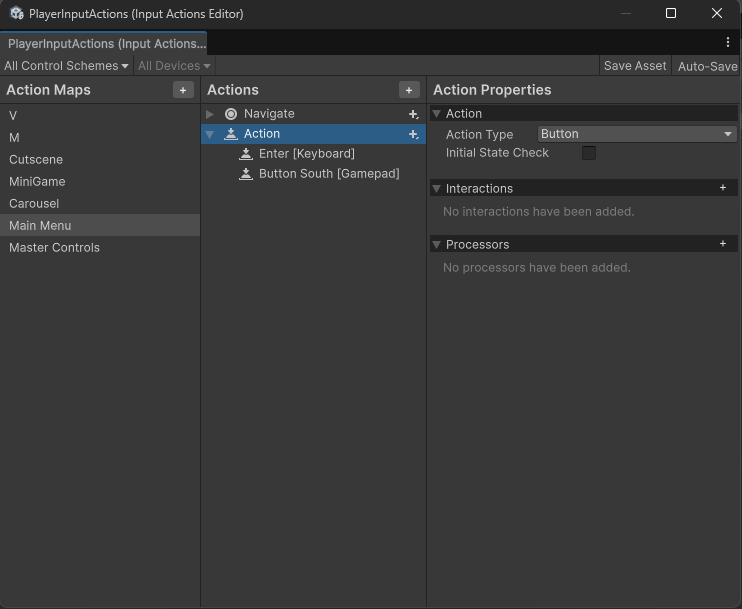
Unity packages all this up with a “press X to .json” file, making it easy to reference.
Input
All the ingredients are now there to create a usable Input System. We just need a MonoBehaviour to tie it all together.
public class MainMenuPlayerInput : PlayerInput
{
    [field: SerializeField] public MenuNavigationEvents NavigationEvents { get; private set; }

    [SerializeField] private InputActionScriptableObject InputActionScriptableObject;
    [SerializeField] private ControlScheme ControlScheme;

    public MenuInputEvents events { get; private set; }
    private PlayerInputActions.MainMenuActions actions;
    private void Awake()
    {
        actions = InputActionScriptableObject.InputActions.MainMenu;
        events = new MainMenuInputEvents(this);
    }
    public override void TurnOn()
    {
        actions.Enable();
    }
    public override void TurnOff()
    {
        actions.Disable();
    }
    private void OnEnable()
    {
        ControlScheme.RegisterControlScheme(this);
        ControlScheme.SwitchToControlScheme(InputType);
        events.AddEventSubscribers(InputActionScriptableObject.InputActions.MainMenu);
    }
    private void OnDisable()
    {
        ControlScheme.DeregisterControlScheme(this);
        events.RemoveEventSubscribers(InputActionScriptableObject.InputActions.MainMenu);
    }
}

public abstract class PlayerInput : MonoBehaviour
{
    [field: SerializeField] public PlayerInputType InputType;

    public abstract void TurnOn();
    public abstract void TurnOff();
}This class is passed into each individual Command as it holds the data that the inputs seek to manipulate. The ControlScheme is a ScriptableObject (which is just data which is easy to pass around) which holds a List of PlayerInputs that I can switch between if I need to. Switching from controlling a character to controlling a pause menu for instance, just requires a call:
ControlScheme.SwitchTo(InputType)
Summary
Overkill? I don’t think so. There is certainly a start up cost to this approach. My brain is quite messy and I need things to be clear. This makes sense to me. That’s one of the great things about code, there is rarely only a single solution to any problem.
I hope this was somewhat coherent to read. I’m still finding my footing with this site and will hopefully become more comprehensible as time progresses. Although if I was you I wouldn’t hold out hope on that one. Comprehensibility isn’t on my game shelf…even I don’t know what that means.
Bye for now.